From the Access to Enterprise Access Rights and Data Governance Documentation Reports page, you can view:
To view access rights and data governance reports, click  from the top navigation pane.
Reports page appears. From the Reports page, you can view governed assets and access rights. For more information on viewing access rights and data governance reports, see the topics below.
Data Governance Report
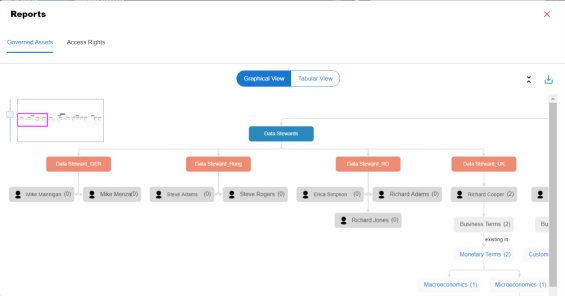
A successful data governance program demands an efficient grouping of roles based on the responsibilities. It is also important to assign appropriate users and roles to catalogs and then assign governance responsibilities to marketplace assets. The governance responsibilities report helps you track assignments of these governance responsibilities to the assets in the Data Marketplace.
To view reports, click the Governed Assets tab.
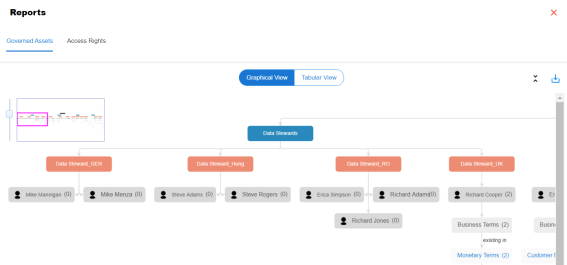
Use the following two views to view reports:
- Graphical View:
The graphical view displays the governance responsibilities in a tree structure. - Tabular View:
The tabular view displays the governance responsibilities in a grid format.
By default, the graphical view opens.
To view report details in the graphical view, use the following options:
- Expand/Collapse (
 )
) -
Use this option to switch between the expanded or collapsed view. For example, the report displays the governance responsibilities in the expanded view.
-
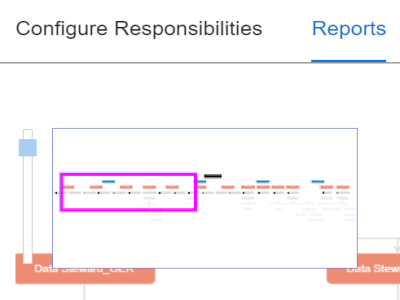
- Pan View
-
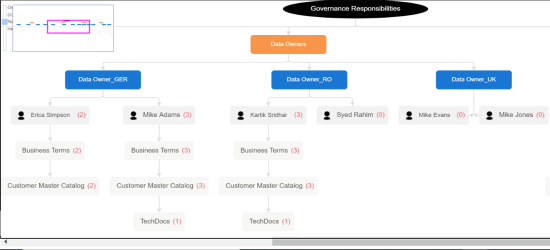
Use this option to focus on a part of the governance responsibilities tree.
-
- Export (
 )
) -
Use this option to download the report in the JPG format.
The Tabular View displays governance responsibilities in a grid that includes, roles group, role, user details, asset name, asset type, and catalogs.
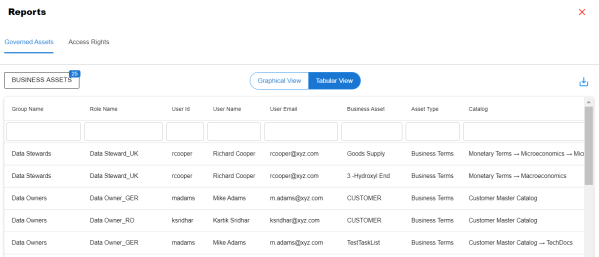
To download the report in XLSX format, click .
Access Rights
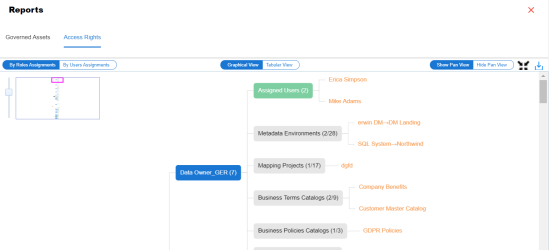
The Access Rights tab displays the roles and user assignments. You can view these assignments in the graphical and tabular views. The graphical view displays the assigned asset types and names in a tree structure that can be expanded. The tabular view displays the assigned asset types and names in a grid format.
To view access rights, follow these steps:
- From the Reports page, click the Access Rights tab.
- Use the following options:
- By Roles Assignments/By Users Assignments
- Use this option to switch between the roles and user's assignments.
- Graphical View/Tabular View
- Use this option to switch between the graphical and tabular views.
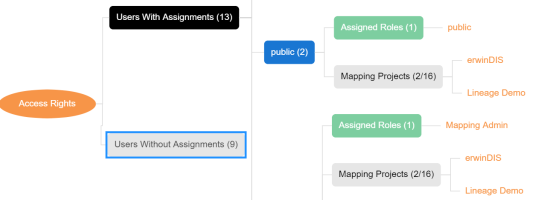
The graphical view displays the assignments in a tree structure. You can expand the tree to view the asset types and names. For example, the following graphical view displays the users assignment.
Use the following options on the Graphical View:
- Show Pan View/Hide Pan View
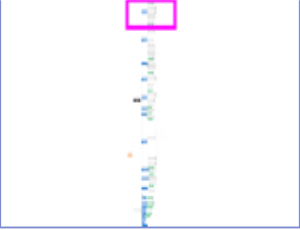
- Use this option to show or hide the pan view. The pan view enables you to navigate across the expanded assignment tree. Use the purple box to move across the tree structure.e
- Expand/Collapse (
 )
) - Use this option to switch between the expanded or collapsed view. For example, the following assignment tree appears in the expanded view.
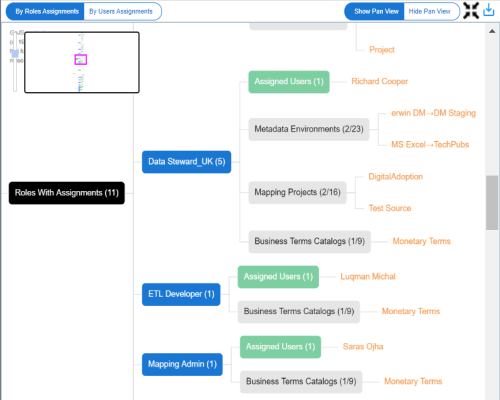
- Expand Node Level
- Use this option to expand the assignment tree at the node level. Hover over a node and click the plus (+) icon.
- Export Image ()
- Use this option to download the assignment tree in JPG format.
The Tabular View displays the assignment details in a grid format. For example, the following roles assignments are displayed in the grid format.
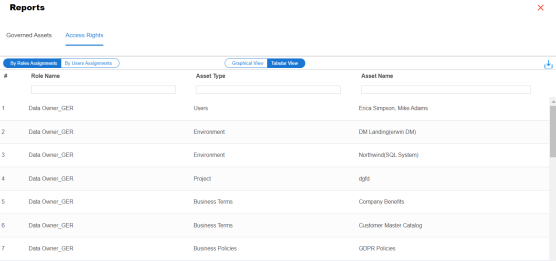
You can download the assignment details in XLSX format. To download the assignments, click
on the Tabular View.